

Resolution Converter: The Ultimate Guide to Image, Screen & Video Resolution
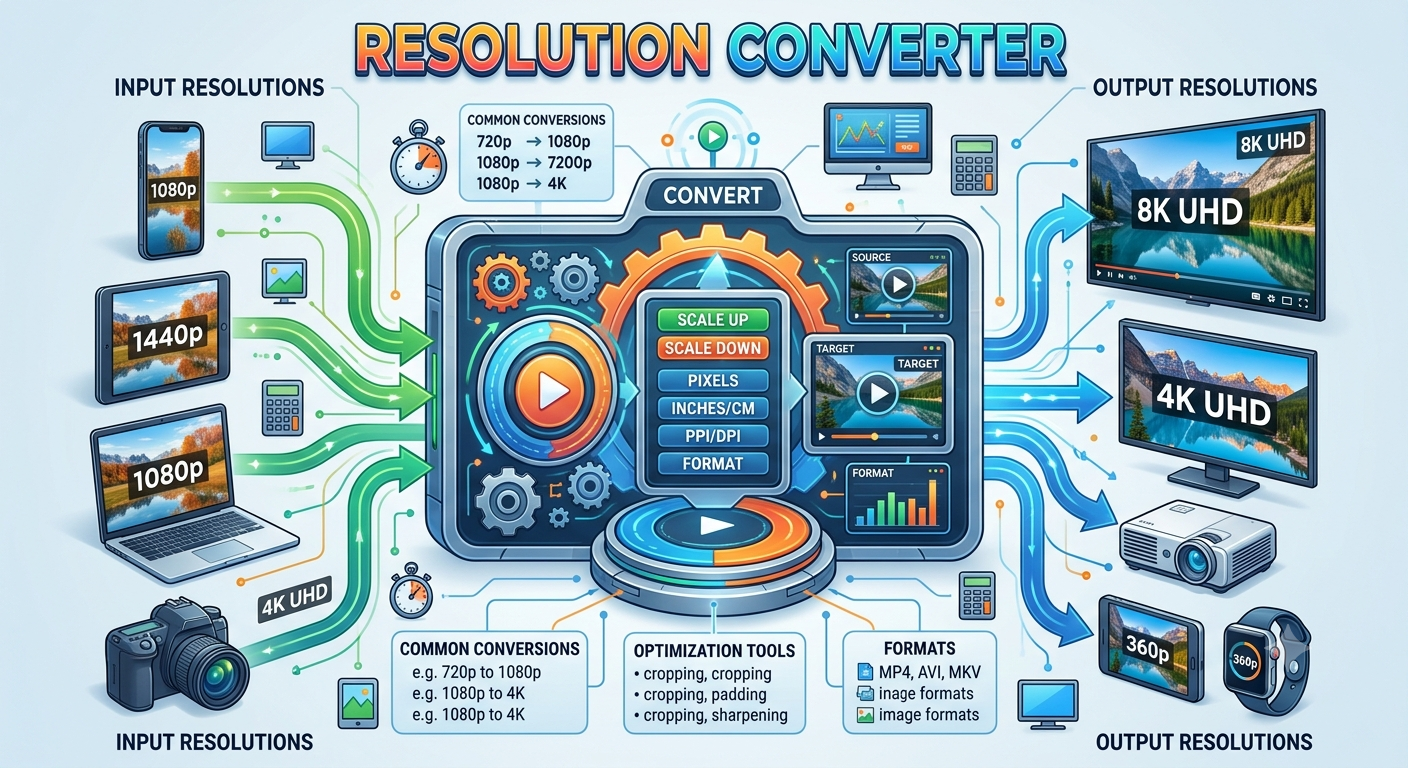
Introduction
In a world where content is consumed across smartphones, tablets, 4K monitors, digital billboards, and print media, resolution is the invisible force behind every sharp, professional visual. Get it wrong and your images appear blurry, your videos pixelated, and your print materials unprofessional. Get it right, and your work looks flawless on every surface.
A Resolution Converter is the essential tool that helps designers, developers, photographers, videographers, and marketers translate resolution values across different units, formats, and mediums quickly and accurately.
This definitive guide covers everything you need to know: what resolution means, how conversion works, common use cases, and pro tips for maintaining image quality across all platforms.
What Is Resolution?
Resolution describes the level of detail an image, display, or output device contains. It can be expressed in several ways depending on the context:
- Pixel dimensions the total number of pixels (e.g., 1920×1080)
- PPI (Pixels Per Inch) pixel density for screens and digital images
- DPI (Dots Per Inch) dot density for printers and physical output
- LPI (Lines Per Inch) used in traditional halftone printing
- MP (Megapixels) total pixel count in millions (used in cameras)
Each of these measurements describes resolution differently, and converting between them is where a Resolution Converter becomes indispensable.
Why Resolution Conversion Is Essential
Cross-Medium Design
A social media graphic, a printed brochure, and a billboard all require different resolutions. What looks perfect on screen at 96 PPI will look blurry when printed at full size without conversion.
Multi-Platform Delivery
Web, mobile, print, and broadcast each have their own resolution standards. Professionals need to convert resolution values to ensure their work meets platform-specific requirements.
File Size Management
Higher resolution means larger files. Converting to the correct resolution for the intended output avoids unnecessarily large files that slow down websites or waste storage.
Device Compatibility
From low-resolution feature phones to high-density 8K monitors, resolution conversion ensures visuals render correctly across the full spectrum of devices.
Core Resolution Units Explained
PPI Pixels Per Inch
The standard measurement for digital images and screens. It defines how many pixels fit within one inch of a digital file.
- Web standard: 72–96 PPI
- Retina/high-DPI screens: 220–460 PPI
- Standard image export for quality: 150–300 PPI
DPI Dots Per Inch
Used in the physical printing world. Describes how many ink dots a printer places per linear inch.
- Newspaper: 85–100 DPI
- Standard office print: 150–200 DPI
- Professional photo print: 300 DPI
- Fine art / archival print: 600+ DPI
LPI Lines Per Inch
A halftone printing measurement used in commercial offset printing. It relates to DPI as follows:
Recommended DPI = LPI × 2
For a newspaper at 85 LPI, the ideal image resolution is 170 DPI.
Megapixels
Cameras describe their sensors in megapixels (MP), which represents the total pixel count:
Megapixels = (Width in pixels × Height in pixels) / 1,000,000
A 24MP camera captures images at roughly 6000×4000 pixels enough for large-format prints.
Common Resolution Standards Reference Chart
| Medium | Resolution Standard |
|---|---|
| Standard web / email | 72–96 PPI |
| Social media images | 72–150 PPI |
| HD video (1080p) | 1920×1080 px |
| 4K Ultra HD video | 3840×2160 px |
| 8K video | 7680×4320 px |
| Standard print | 300 DPI |
| Large format print (viewed close) | 150–200 DPI |
| Billboard / wide format (viewed far) | 15–72 DPI |
| Newspaper print | 85–100 DPI |
| Magazine / commercial print | 133–175 LPI / 300 DPI |
| Fine art archival print | 600 DPI |
| Smartphone screen (iPhone 15 Pro) | 460 PPI |
| 4K Monitor (27-inch) | ~163 PPI |
How a Resolution Converter Works
A Resolution Converter performs calculations between different resolution units and dimensions. The most common conversions include:
1. PPI ↔ DPI Conversion
For practical purposes, 1 PPI = 1 DPI when applied to the same physical inch. However, the context differs: PPI is an image attribute, DPI is a printer attribute.
Rule of thumb: Export images at 300 PPI for 300 DPI printing.
2. Pixels ↔ Physical Dimensions
Physical size (inches) = Pixels / PPI
Pixels = Physical size (inches) × PPI
Example: An image 3000 pixels wide exported at 300 PPI:
3000 ÷ 300 = 10 inches wide
3. Pixels ↔ Centimeters / Millimeters
Size (cm) = (Pixels / PPI) × 2.54
Size (mm) = (Pixels / PPI) × 25.4
Example: 1200 pixels at 96 PPI in centimeters:
(1200 / 96) × 2.54 = 31.75 cm
4. Screen Resolution → Print Size
To find the maximum print size at 300 DPI from an image:
Max print width (in) = Image width (px) / 300
Max print height (in) = Image height (px) / 300
5. Megapixels → Pixel Dimensions
Width × Height = Megapixels × 1,000,000
For a 12MP image in standard 3:2 ratio:
Width ≈ 4000 px, Height ≈ 3000 px
Step-by-Step: How to Use a Resolution Converter
Step 1: Define Your Source
Identify what you have:
- An image with known pixel dimensions
- A screen with a known size and resolution
- A print requirement with DPI and physical dimensions
Step 2: Define Your Target
Know what you need:
- A specific print size (e.g., 8×10 inches at 300 DPI)
- A screen export size (e.g., 1080p web banner)
- A file for a specific platform (e.g., Instagram, Facebook, Amazon product listing)
Step 3: Enter Values into the Converter
Input your known values and select the conversion type. A good resolution converter will instantly show:
- Output pixel dimensions
- Physical size at target DPI/PPI
- File resolution change (upscale/downscale ratio)
Step 4: Apply and Export
Use the output values in your image editor:
- Adobe Photoshop: Image → Image Size → set resolution and dimensions
- GIMP: Image → Scale Image → set PPI and pixel size
- Lightroom: Export → set resolution and long edge in pixels
Resolution Conversion for Specific Platforms
Social Media
| Platform | Recommended Resolution |
|---|---|
| Instagram Post (Square) | 1080×1080 px |
| Instagram Story / Reel | 1080×1920 px |
| Facebook Cover Photo | 820×312 px |
| Twitter / X Header | 1500×500 px |
| LinkedIn Cover | 1584×396 px |
| YouTube Thumbnail | 1280×720 px |
All social media images should be exported at 72–96 PPI higher PPI adds file size without visible benefit on screens.
Print Design
| Print Product | Recommended Resolution |
|---|---|
| Business Card | 300 DPI (3.5×2 in = 1050×600 px) |
| A4 Flyer | 300 DPI (8.27×11.69 in = 2480×3508 px) |
| Poster (18×24 in) | 300 DPI = 5400×7200 px |
| Banner (3×6 ft) | 150 DPI = 5400×10800 px |
| Billboard (14×48 ft) | 15–30 DPI |
Video Production
| Format | Resolution |
|---|---|
| SD (Standard Definition) | 720×480 px |
| HD (720p) | 1280×720 px |
| Full HD (1080p) | 1920×1080 px |
| 2K | 2048×1080 px |
| 4K UHD | 3840×2160 px |
| 4K DCI (cinema) | 4096×2160 px |
| 8K UHD | 7680×4320 px |
Understanding Aspect Ratios in Resolution Conversion
When converting resolution, aspect ratio determines how width and height scale together. Changing resolution without maintaining aspect ratio causes distortion.
Common Aspect Ratios
| Ratio | Common Use |
|---|---|
| 16:9 | Widescreen video, monitors, YouTube |
| 4:3 | Traditional TV, older monitors |
| 1:1 | Instagram square, profile photos |
| 9:16 | Mobile video, Stories, Reels |
| 3:2 | DSLR camera sensors, photo prints |
| 2:1 | Cinematic / panoramic |
| 4:5 | Instagram portrait posts |
Tip: When using a resolution converter, always lock the aspect ratio to prevent unintended stretching or squishing.
Resolution and File Formats: What You Need to Know
Different file formats handle resolution data differently. Understanding this prevents common mistakes:
JPEG / JPG
Stores embedded PPI metadata but compresses pixel data. Compression reduces quality with each save. Best for photos at 72–300 PPI depending on use.
PNG
Lossless compression no quality degradation. Ideal for graphics, logos, and images requiring transparency. Supports PPI metadata.
TIFF
Uncompressed, high-quality format preferred for professional print workflows. Supports up to 600+ DPI without quality loss.
SVG
Vector format resolution-independent. Scales to any size without pixelation. Ideal for logos, icons, and illustrations.
WebP
Modern web format offering smaller file sizes than JPEG/PNG at equivalent quality. Optimal at 72–96 PPI for web delivery.
Can contain both raster (pixel-based) and vector data. For print PDFs, embed images at 300 DPI minimum.
Resolution Upscaling vs. Downscaling
Downscaling (High → Low Resolution)
Safe and lossless in terms of quality. Reducing an image from 300 PPI to 72 PPI simply removes pixels while maintaining sharpness.
Best practices:
- Use bicubic sharper resampling in Photoshop
- Always downscale from the original, never from a previously downscaled version
- Export a fresh copy; never overwrite your master file
Upscaling (Low → High Resolution)
Problematic adding pixels that don't exist requires interpolation, which can cause blurriness.
Solutions for quality upscaling:
- Adobe Photoshop Super Resolution AI-powered 4× upscale
- Topaz Gigapixel AI industry-leading upscaling tool
- Let's Enhance online AI upscaling
- GIMP with Sinc (Lanczos3) free, high-quality resampling
Rule: Always start with the highest resolution source possible and downscale to targets.
Resolution in Responsive Web Design
Modern web development must account for varying screen resolutions across devices. A standard image looks fine on a 96 DPI monitor but blurry on a 460 PPI mobile display.
The Device Pixel Ratio (DPR)
High-DPI screens use a device pixel ratio greater than 1:
| Device | DPR |
|---|---|
| Standard monitor | 1× |
| MacBook Retina | 2× |
| iPhone 15 Pro | 3× |
| Some Android flagship | 3–4× |
Serving Correct Resolutions with srcset
<img
  src="image-1x.jpg"
  srcset="image-1x.jpg 1x, image-2x.jpg 2x, image-3x.jpg 3x"
  alt="Responsive image"
/>
CSS Resolution Media Queries
/* Standard screens */
.hero { background-image: url('hero-1x.jpg'); }

/* High-DPI / Retina screens */
@media (-webkit-min-device-pixel-ratio: 2),
       (min-resolution: 192dpi) {
  .hero { background-image: url('hero-2x.jpg'); }
}
Resolution Conversion for Photography Workflows
Professional photographers regularly convert resolution for different output needs from a single master file.
Typical Photography Resolution Workflow
Camera RAW file (full resolution)
       ↓
Edit in Lightroom / Photoshop
       ↓
┌──────────────────────────────────────┐
│  Export for web: 72–96 PPI           │
│  Export for print: 300 PPI           │
│  Export for large print: 150–200 PPI │
│  Export for stock: 300 PPI, TIFF     │
└──────────────────────────────────────┘
Camera Resolution vs. Print Size Chart
| Camera Sensor | Max Quality Print Size (at 300 DPI) |
|---|---|
| 12 MP (4000×3000) | ~13×10 inches |
| 24 MP (6000×4000) | ~20×13 inches |
| 36 MP (7360×4912) | ~24×16 inches |
| 45 MP (8192×5464) | ~27×18 inches |
| 61 MP (9504×6336) | ~31×21 inches |
Pro Tips for Working with Resolution
-
Always work from the highest resolution source master files should never be lower than your highest-quality output requirement.
-
Understand the difference between resampling and resizing changing physical dimensions without resampling keeps pixel count the same; resampling changes pixel count.
-
72 PPI is a myth for web quality what matters on screens is total pixel dimensions, not PPI. A 3000px image at 72 PPI looks identical on screen to 3000px at 300 PPI.
-
Use vector whenever possible SVG, AI, and EPS files have no resolution ceiling and are always the better choice for logos and icons.
-
Match resolution to viewing distance billboards at 30 feet need far less DPI than a business card held in your hand.
-
Calibrate your monitor working on an uncalibrated display can make resolution and color decisions unreliable.
-
Check platform specifications before exporting every platform (Instagram, Amazon, print houses) has resolution requirements. Always verify before final export.
Frequently Asked Questions
What is the best resolution for printing?
300 DPI is the industry standard for professional-quality printing. For large-format prints (banners, posters) viewed from a distance, 150 DPI is often sufficient.
Is 72 DPI good enough for web?
Yes for web and screen display, 72–96 PPI is adequate. What matters more for screens is the total pixel dimensions, not the PPI value.
How do I convert DPI to PPI?
Numerically, 1 DPI = 1 PPI when referring to the same inch. The difference is context: PPI is a digital image property; DPI is a printer property. For print workflows, set your image PPI to match the printer's DPI requirement.
Can I increase image resolution without losing quality?
Traditional upscaling degrades quality. However, modern AI tools like Adobe's Super Resolution can intelligently add detail during upscaling, producing far better results than conventional interpolation.
What resolution do I need for a 4K video?
4K UHD video requires a minimum resolution of 3840×2160 pixels. Cinema 4K (DCI) uses 4096×2160 pixels.
Also Check Out : Multiconverters
Conclusion
Resolution is one of the most fundamental yet misunderstood concepts in digital and print media. From pixels to print, from web to 4K video, every visual medium has its own resolution language and mastering the conversion between them is what separates amateur output from professional results.
A Resolution Converter puts the power of precise, accurate conversion at your fingertips. Whether you're preparing artwork for a print shop, optimizing images for a website, exporting video for broadcast, or ensuring your photographs look stunning at any size, understanding and applying the right resolution values is non negotiable.
Use this guide as your go-to reference, bookmark a reliable resolution converter tool, and let every pixel work exactly as intended.
 English
 Arabic
 French
 Spanish
 Portuguese
 Deutsch
 Turkish
 Dutch
Dutch
 Italiano
 Russian
 Romaian
 Portuguese (Brazil)
 Greek
Greek